






Printing A Label to the Dymo Label Printer
|
|
Printing A Label to the Dymo Label Printer |
| Instructions to use the "Multifeeder Technology" template |
|---|
|
The DYMO Label Writer program must be installed on the local computer you wish to print from. 1) Click on the Dymo Label printer shortcut on your deskop.
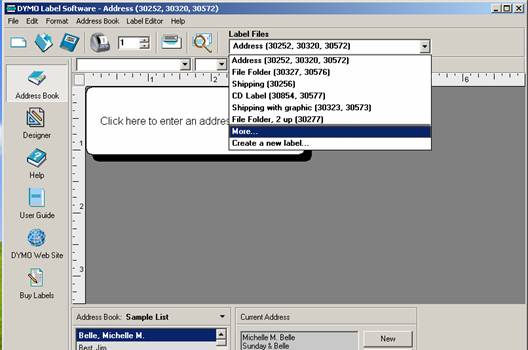
The Dymo Label Software opens and you are ready to begin. You may create your own template if you wish. For simplicity I have created a ‘Multifeeder Technology’ label template. 2) To use the ‘Multifeeder Technology’ label template click on the arrow down under label files and select More…
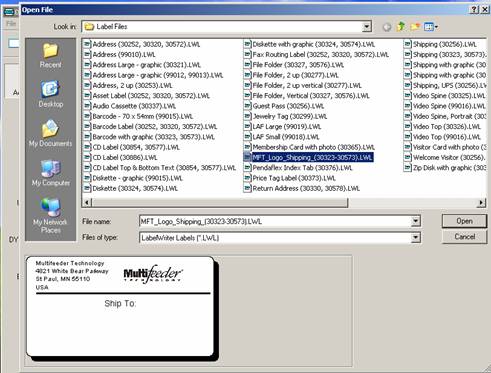
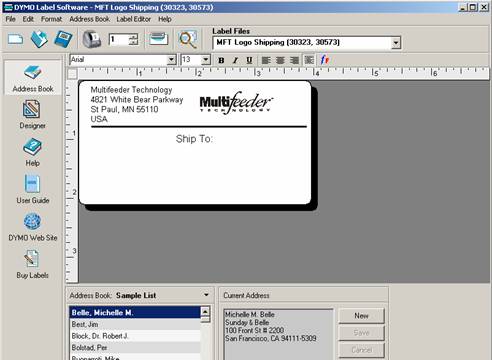
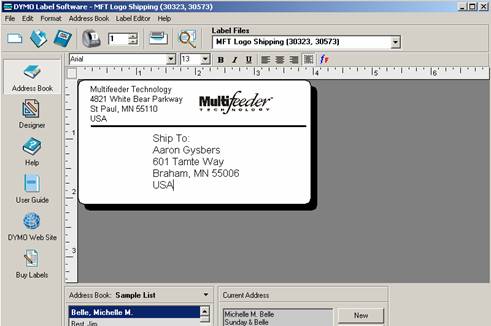
The “Multifeeder Technology” template opens. If this template does not appear in your list, you must copy it from the server to the Label Files directory on your computer. (\\Spectrum\Sales\Marketing\DymoLabelPrinter\MFT_Logo_Shipping_(30323-30573).LWL) 4) Now simply click under “Ship to:” and type in the address.
5) To print, simply click on the Print Current Label icon. (ctrl + P or file à Print).
When your done printing, simply close the program. There is no need to save unless you modified the template and want to save it.
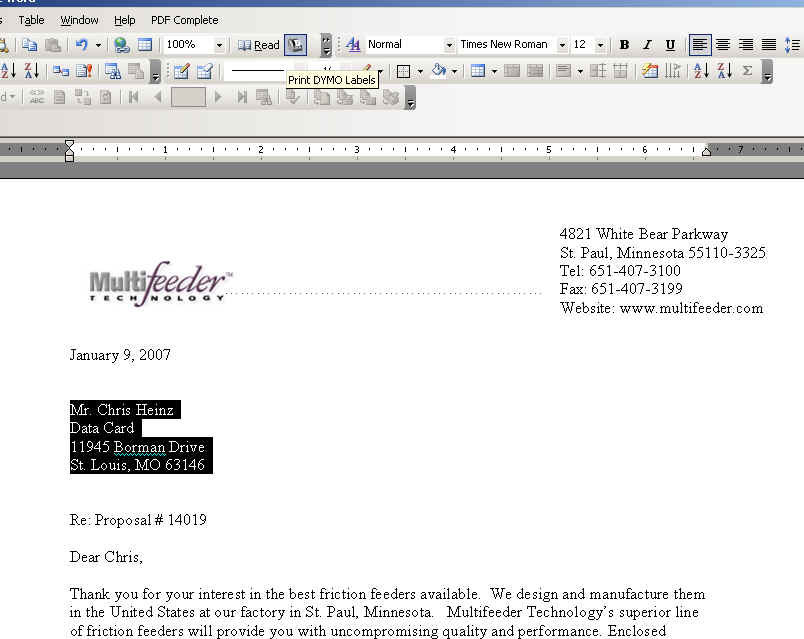
Also, an address from Microsoft word, can also be printed easily. Simply highlight the address and click on the Print DYMO Labels icon in your standard tool bar.
|